[Elastic] Elastic Stack(ELK Stack) - Mac OS 설치 방법
1. Homebrew 설치
/bin/bash -c "$(curl -fsSL https://raw.githubusercontent.com/Homebrew/install/master/install.sh)"Homebrew 설치가 되어있지 않으면 터미널에서 위 명령어를 입력하여 설치할 수 있다.
2. elastic tap 저장소 추가
brew tap elastic/tap터미널에서 위 명령어를 통해 elastic 패키지 저장소를 추가할 수 있다.
3. Elasticsearch 설치 및 실행
brew install elastic/tap/elasticsearch-full위 명령어로 Elasticsearch를 설치할 수 있고
elasticsearch설치 완료 후에는 elasticsearch 명령어를 통해 Elasticsearch를 실행할 수 있다.
백그라운드에서 실행하고 싶으면 elasticsearch 명령어 대신 다음과 같은 명령어로 실행할 수도 있다.
(중단할 경우에는 start 대신에 stop 사용)
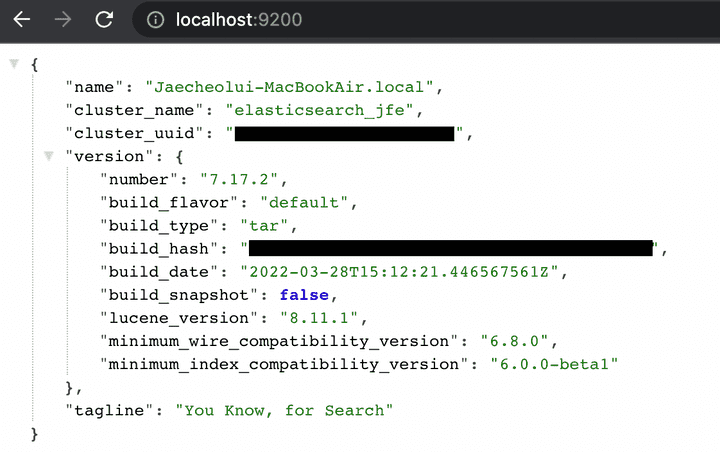
brew services start elastic/tap/elasticsearch-full실행 후에는 http://localhost:9200 에 접속하여 제대로 실행되었는지 확인할 수 있다.
다음과 같은 화면이 보이면 제대로 실행중인 경우
4. Kibana 설치 및 실행
brew install elastic/tap/kibana-fullkibana 또한 위 명령어로 kibana를 설치할 수 있고
kibana설치 완료 후에는 kibana 명령어를 통해 실행할 수 있고,
다음과 같은 명령어로 백그라운드에서 실행할 수도 있다.
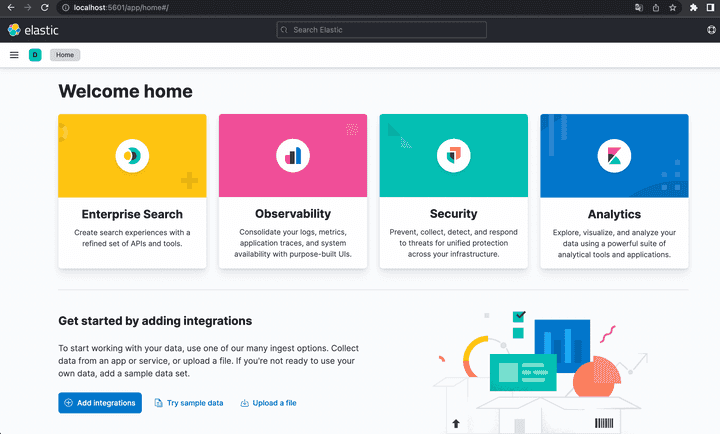
brew services start elastic/tap/kibana-full실행 후에는 http://localhost:5601 에 접속하여 제대로 실행되었는지 확인할 수 있다.
다음과 같은 화면이 보이면 성공
5. Logstash 설치 및 실행
brew install elastic/tap/logstash-fullLogstash도 위 명령어를 통해 설치할 수 있고,
실행하기 전에 인덱싱하기 적절하게 필터링을 위한 설정 파일(logstash-sample.conf)을 수정하여 필터링 설정을 할 수 있다.
cd /opt/homebrew/etc/logstashHomebrew를 이용하여 설치한 경우에는 다음과 같은 경로에서 설정 파일들을 확인할 수 있고
여기서 logstash-sample.conf 설정 파일을 수정하면 된다.
vi logstash-sample.conf# Sample Logstash configuration for creating a simple
# Beats -> Logstash -> Elasticsearch pipeline.
input {
beats {
port => 5044
}
}
output {
elasticsearch {
hosts => ["http://localhost:9200"]
index => "%{[@metadata][beat]}-%{[@metadata][version]}-%{+YYYY.MM.dd}"
#user => "elastic"
#password => "changeme"
}
}설정 파일을 열어보면 위와 같이 파일이 구성되어 있는데 여기서 filter를 추가하여 필터링 설정을 할 수 있다.
(filter 설정에 대한 예시는 이후 포스트에서 다룰 예정)
이렇게 설정한 후에는 해당 디렉토리에서 다음 명령어를 통해 Logstash를 실행할 수 있다.
logstash -f logstash-sample.conf6. Filebeat 설치 및 실행
brew install elastic/tap/filebeat-fullFilebeat도 위 명령어를 통해 설치할 수 있고,
실행하기 전에 설정 파일(filebeat.yml)을 수정하여 input과 output에 대한 설정을 할 수 있다.
cd /opt/homebrew/etc/filebeat
vi filebeat.yml
Filebeat 설정에 대한 설명도 이후 포스트에서 예시를 통해 다룰 예정이다.
이렇게 설정한 후에는 해당 디렉토리에서 다음 명령어를 통해 Filebeat를 실행할 수 있다.
filebeat -e                 # 일반적으로 실행 하는 경우
filebeat -e -c filebeat.yml # -c 옵션은 configuration 파일을 특정할 때 사용 (-c 사용안하면 default는 filebeat.yml)